
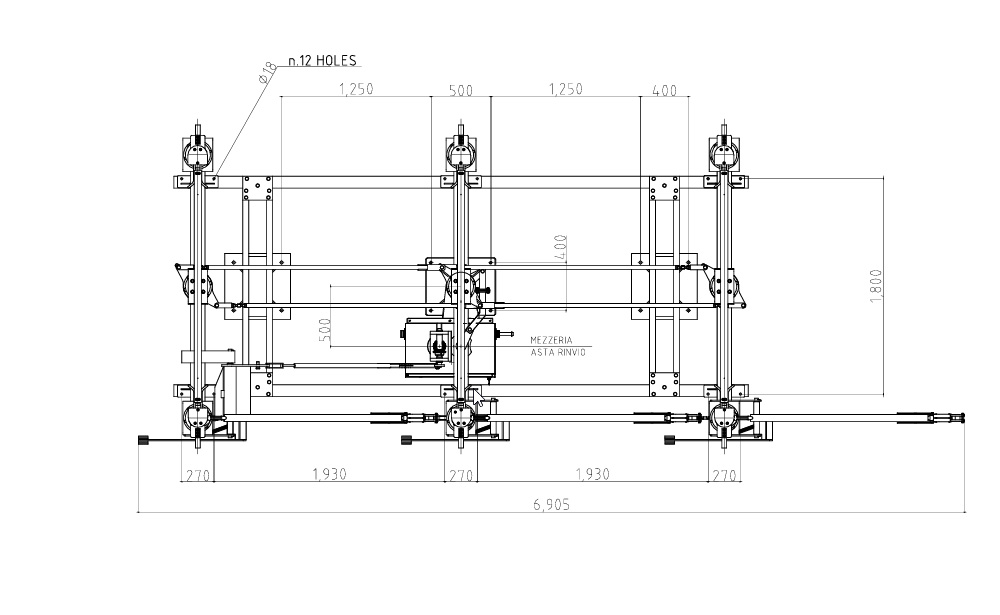
In Building Information Modeling (BIM), Revit Family Creation is one of the most critical components for achieving consistent, data-rich, and scalable design workflows. Families in Autodesk Revit are not just geometric objects—they are intelligent parametric components that define how elements behave, display, and store information throughout a project lifecycle.
Whether you are working on architectural, structural, or MEP models, understanding how to build and manage Revit families directly impacts model accuracy, coordination efficiency, and downstream deliverables.
What is a Revit Family?
A Revit family is a collection of 2D and 3D elements with shared parameters and behaviors. These elements are used to represent real-world building components such as doors, windows, beams, ducts, furniture, and fixtures.
Revit families are typically categorized into three types:
- System Families – Built into Revit (e.g., walls, floors, roofs)
- Loadable Families – Custom components created externally and loaded into projects (e.g., doors, furniture)
- In-Place Families – Unique, project-specific elements created directly within a model
Among these, loadable families are the primary focus of Revit Family Creation workflows.
Why Revit Family Creation Matters
Proper family creation is not just a modeling task—it is a data engineering process within BIM. Poorly built families can cause:
- Slow model performance
- Coordination issues during clash detection
- Incorrect scheduling and quantity takeoffs
- Inconsistent documentation output
On the other hand, well-structured families improve:
- Model efficiency and lightweight performance
- Automated scheduling accuracy
- Design flexibility through parametric control
- Cross-discipline coordination
Core Principles of High-Quality Revit Families
1. Parametric Control
Parametric modeling is the backbone of Revit families. Parameters allow users to modify dimensions, materials, visibility, and behavior without rebuilding geometry.
Key parameter types include:
- Type Parameters – Control all instances of a family type
- Instance Parameters – Control individual placed elements
- Shared Parameters – Used for tagging and scheduling across projects
A well-structured family minimizes hard-coded geometry and maximizes parameter-driven flexibility.
2. Proper Reference Planes and Constraints
Reference planes define the framework of a family. All geometry should align and lock to these planes to ensure stability when dimensions change.
Best practices include:
- Establish origin-based symmetry
- Lock geometry to reference planes
- Avoid over-constraining elements
Poor constraint management is one of the most common causes of unstable families.
3. Lightweight Geometry
Families should be optimized for performance:
- Avoid excessive detail at low Levels of Detail (LOD)
- Use symbolic lines instead of heavy geometry where possible
- Minimize imported CAD or mesh data
Over-modeled families can significantly slow down large BIM models.
4. Nested Families for Complex Components
For complex assemblies (e.g., HVAC units, curtain walls, furniture systems), nested families help maintain modularity.
Advantages include:
- Easier maintenance and updates
- Reusable components
- Cleaner parameter management
However, nesting should be controlled to avoid parameter duplication and reporting issues.
The Workflow of Revit Family Creation
A structured workflow ensures consistency and reduces rework:
Step 1: Requirement Analysis
Understand:
- Intended use (architectural, structural, MEP)
- Required parameters
- LOD requirements (LOD 100–500)
Step 2: Template Selection
Choose the correct family template:
- Metric/Imperial Generic Model
- Door/Window template
- Specialty equipment template
Step 3: Reference Framework Setup
Define:
- Origin point
- Reference planes
- Constraints and alignment logic
Step 4: Geometry Modeling
Build geometry using:
- Extrusions
- Sweeps
- Blends
- Revolves
Ensure all geometry is parametric and constraint-driven.
Step 5: Parameter Assignment
Assign:
- Dimensions (width, height, depth)
- Material parameters
- Visibility controls
- Reporting parameters
Step 6: Testing and Validation
Load into a project and test:
- Flexibility across sizes
- Schedule behavior
- Clash compatibility
Levels of Detail (LOD) in Families
LOD defines how much detail a family contains at different project stages:
- LOD 100–200: Conceptual representation
- LOD 300: Accurate design-level geometry
- LOD 350–400: Coordination-ready model
- LOD 500: As-built accuracy
Aligning families with appropriate LOD ensures efficiency and avoids unnecessary model weight.
Common Mistakes in Revit Family Creation
Even experienced BIM modelers encounter recurring issues:
- Overcomplicated geometry for simple objects
- Missing or inconsistent parameters
- Incorrect category assignment
- Ignoring naming conventions
- Lack of shared parameter integration
These issues often lead to downstream coordination failures and data loss in schedules.
Industry Use Cases
Revit family creation is essential across multiple BIM applications:
- Architecture: Doors, windows, furniture systems
- Structure: Steel connections, reinforcement components
- MEP: Duct fittings, pipe accessories, equipment modeling
- Facility Management: Asset tracking and lifecycle management
In large-scale BIM coordination workflows, standardized families are essential for interoperability and data consistency.
Final Thoughts
Revit Family Creation is not just a technical skill—it is a foundational BIM discipline that directly impacts project quality, coordination efficiency, and data integrity. High-performing BIM teams invest heavily in standardized family libraries to ensure scalability across projects.
When properly executed within Autodesk Revit, families become more than components—they become intelligent building data systems that support design, construction, and operations.