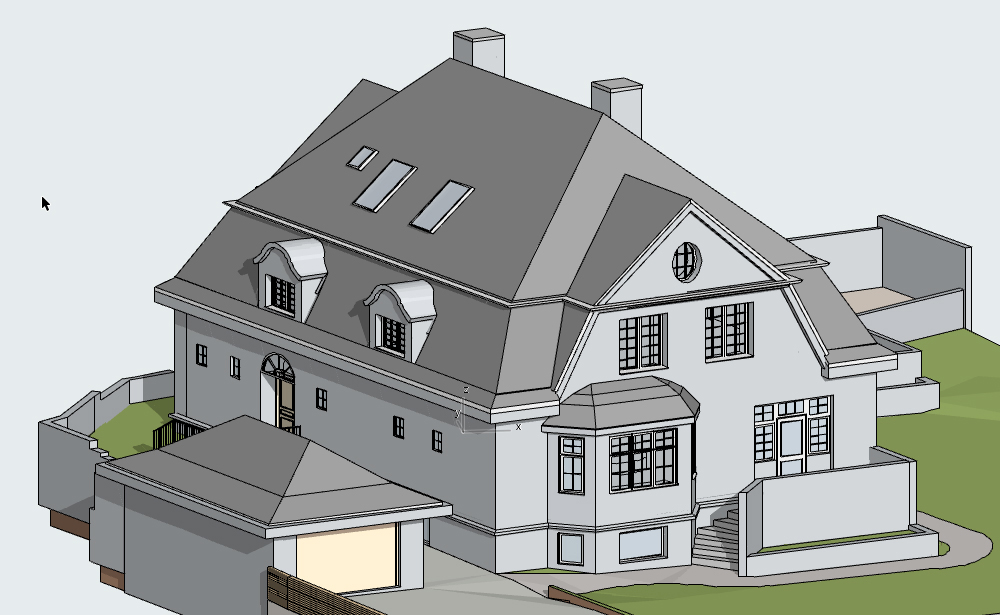
CAD to BIM Conversion: Transforming 2D Drawings into Intelligent 3D Models

In the architecture, engineering, and construction (AEC) industry, the shift from traditional drafting methods to intelligent modeling workflows has fundamentally changed how projects are designed, coordinated, and delivered. One of the most important transitions in this evolution is CAD to BIM conversion—the process of converting 2D CAD drawings into a data-rich Building Information Model (BIM).

This transformation is not just a change in format; it is a shift from static geometry to dynamic, information-driven digital construction environments.

What is CAD to BIM Conversion?

CAD to BIM conversion refers to the process of transforming conventional Computer-Aided Design (CAD) drawings—typically 2D plans, elevations, and sections—into a Building Information Model (BIM). Unlike CAD, which focuses on lines and shapes, BIM embeds intelligence into building elements such as walls, doors, slabs, and structural components.

For example:

  • A CAD line representing a wall becomes a parametric wall object in BIM
  • A door block becomes a fully defined door family with metadata (material, fire rating, manufacturer details)

The result is a model that is not only visual but also informational and analytical.

Why CAD to BIM Conversion is Important

1. Improved Coordination

BIM enables multiple disciplines—architectural, structural, and MEP—to work within a single coordinated environment. This reduces conflicts and improves collaboration.

2. Clash Detection and Risk Reduction

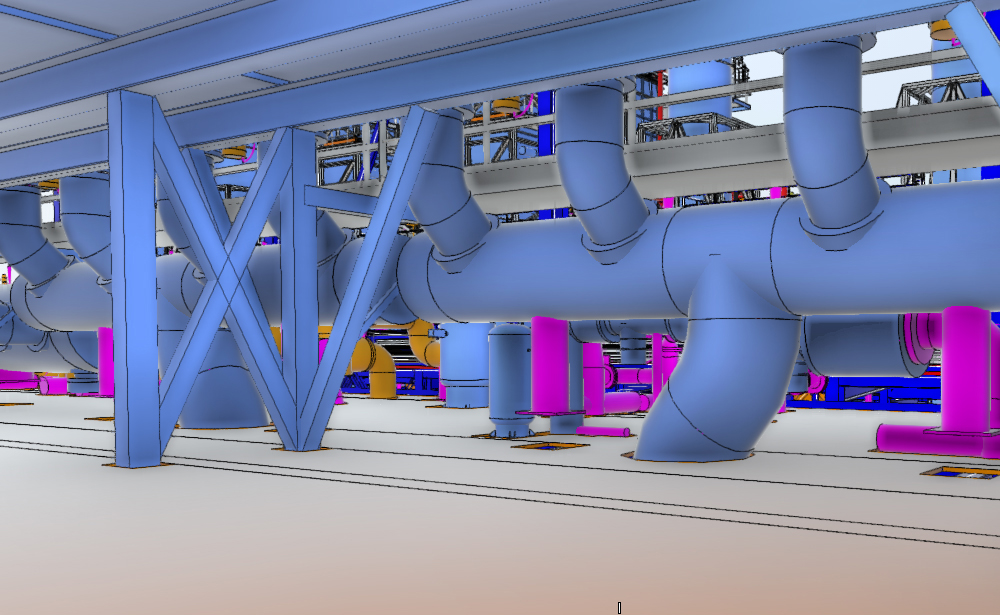
Converted BIM models allow early detection of design clashes (e.g., ductwork intersecting beams), reducing costly on-site rework.

3. Enhanced Project Visualization

Stakeholders can better understand design intent through 3D visualization instead of interpreting complex 2D drawings.

4. Lifecycle Management

BIM supports not just design and construction, but also facility management by storing asset data throughout the building lifecycle.

5. Increased Efficiency

Automated quantity takeoffs, scheduling, and documentation reduce manual effort and improve accuracy.

The CAD to BIM Conversion Process

Although workflows may vary depending on project requirements, a typical CAD to BIM conversion process includes:

1. Data Collection and Review

Existing CAD files (DWG, DXF) are gathered and analyzed for completeness, accuracy, and layering standards.

2. Setting Up BIM Environment

A project template is created in BIM software such as Autodesk Revit, including levels, grids, and families.

3. Model Creation

CAD drawings are used as references to reconstruct building elements in 3D:

  • Architectural elements (walls, doors, windows)
  • Structural components (beams, columns, foundations)
  • MEP systems (ducts, pipes, electrical layouts)

4. Data Enrichment

Each model element is assigned metadata such as materials, dimensions, and performance specifications.

5. Quality Control and Validation

The BIM model is checked for accuracy against CAD inputs and project standards.

6. Deliverables Generation

Final outputs may include:

  • 3D BIM model files
  • Coordinated drawings
  • Schedules and quantity reports

Key Tools Used in CAD to BIM Conversion

Several software platforms support CAD to BIM workflows:

  • Autodesk AutoCAD – Used for preparing and cleaning CAD drawings
  • Autodesk Revit – Primary tool for BIM model creation
  • Navisworks – Used for clash detection and model review
  • SketchUp – Often used for conceptual modeling before BIM development

These tools work together to ensure a smooth transition from CAD-based documentation to BIM-based intelligence.

Challenges in CAD to BIM Conversion

Despite its advantages, the conversion process comes with challenges:

1. Inconsistent CAD Data

Poor layering, missing dimensions, or unstructured CAD files can slow down conversion.

2. Manual Effort Requirement

High-quality BIM models often require significant manual reconstruction rather than automated conversion.

3. Interpretation Errors

CAD drawings may lack clarity, requiring assumptions during model creation.

4. Skill Requirements

BIM modeling demands specialized knowledge of both software and construction standards.

Best Practices for Successful Conversion

To ensure efficient CAD to BIM conversion:

  • Standardize CAD files before conversion
  • Define clear BIM execution plans (BEP)
  • Use consistent naming conventions and layering systems
  • Validate models at each stage of development
  • Collaborate closely between design disciplines

The Future of CAD to BIM Workflows

The industry is steadily moving toward full BIM adoption and automation, where CAD becomes a legacy input rather than a primary design tool. Emerging technologies such as AI-assisted modeling, scan-to-BIM integration, and generative design are further accelerating this transition.

In the near future, CAD to BIM conversion will become more automated, reducing manual modeling effort while increasing accuracy and data richness.

Conclusion

CAD to BIM conversion is a critical step in modernizing the AEC industry. By transforming static drawings into intelligent digital models, organizations can improve coordination, reduce errors, and enhance project delivery outcomes.

As BIM continues to evolve, the ability to effectively convert CAD data into structured, information-rich models will remain a key capability for architects, engineers, and construction professionals.
Point Cloud to Revit Workflow Explained: LOD 100 to 500 for BIM Accuracy

The transformation of point cloud data into a structured Building Information Model (BIM) in Autodesk Revit has become a core workflow in architecture, engineering, and construction (AEC). As laser scanning and LiDAR technologies become more accessible, professionals increasingly rely on point cloud-to-Revit conversion to create accurate digital twins of existing structures.

A critical part of this process is understanding Level of Development (LOD), which defines how detailed and reliable a BIM element is. The LOD scale from 100 to 500 helps teams align expectations, accuracy, and deliverables across project stages.

What Is Point Cloud to Revit?

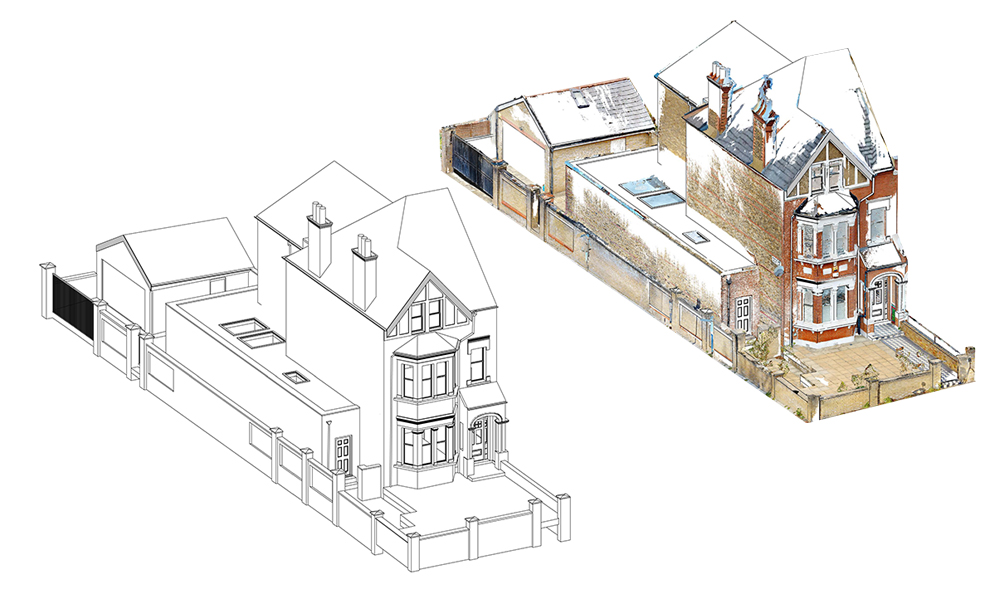
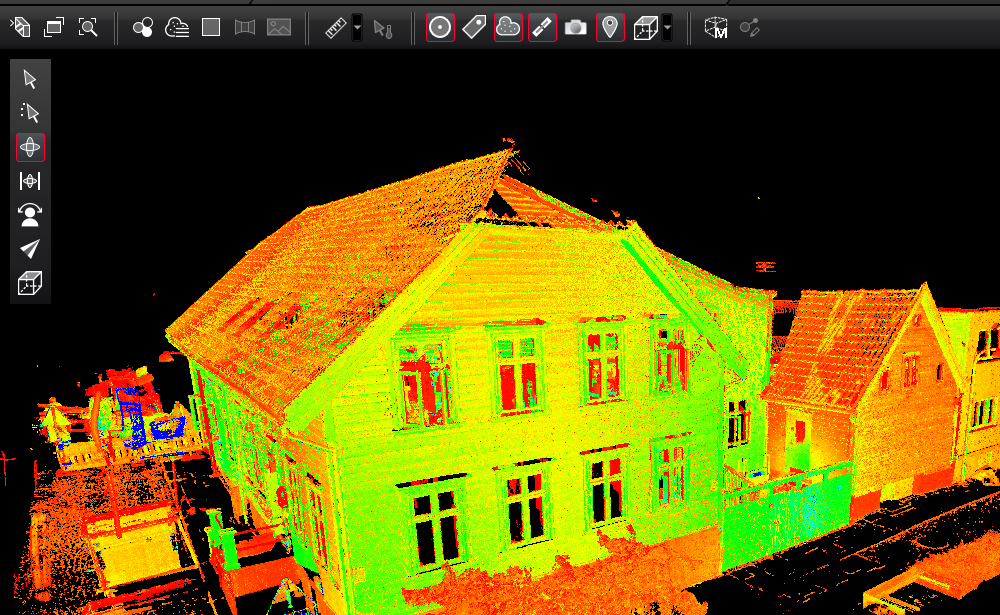
A point cloud is a dense collection of 3D points captured using laser scanning or photogrammetry. Each point represents a coordinate in space, collectively forming a highly accurate digital snapshot of a physical environment.

When imported into Revit, this raw data serves as a reference for modeling building elements such as walls, slabs, columns, MEP systems, and architectural details. However, Revit does not automatically convert point clouds into BIM objects; it requires manual or semi-automated modeling.

The goal is to translate this unstructured data into an intelligent BIM model with defined geometry and metadata.

Understanding LOD in BIM (100–500)

LOD defines the progression of model maturity:

  • LOD 100 – Conceptual
  • LOD 200 – Approximate Geometry
  • LOD 300 – Precise Geometry
  • LOD 400 – Fabrication Level
  • LOD 500 – As-Built / Verified Reality

Each level plays a distinct role in how point cloud data is interpreted and modeled in Revit.

LOD 100: Conceptual Modeling from Point Cloud

At LOD 100, the model represents a generalized massing based on point cloud scans.

Characteristics:

  • Basic building form (mass models)
  • Approximate dimensions
  • No detailed geometry
  • Used for early feasibility studies

Point Cloud Usage:

At this stage, point clouds are primarily used to understand overall building shape, height, and spatial context. Accuracy is secondary to conceptual representation.

LOD 200: Schematic Representation

LOD 200 introduces more recognizable building elements derived from scan data.

Characteristics:

  • Generic walls, floors, and roofs
  • Approximate placement and size
  • Basic spatial relationships

Point Cloud Usage:

Modelers trace point cloud sections to create rough but structured elements in Revit. Elements are still not exact but align more closely with reality.

LOD 300: Accurate As-Built Geometry

This is one of the most important stages in scan-to-BIM workflows.

Characteristics:

  • Precise geometry and dimensions
  • Fully coordinated architectural and structural elements
  • Suitable for construction documentation

Point Cloud Usage:

The point cloud becomes the primary reference. Walls, columns, beams, and openings are modeled to closely match scanned geometry. This is where accuracy becomes critical.

LOD 300 is often required for renovation, retrofit, and facility management projects.

LOD 400: Fabrication and Construction Detail

At LOD 400, the model transitions into fabrication-level detail.

Characteristics:

  • Includes construction details (connections, joints, assemblies)
  • Coordination with MEP and structural systems
  • Ready for fabrication and installation planning

Point Cloud Usage:

Point clouds are used for verification rather than modeling. Engineers ensure that fabricated components align perfectly with existing conditions captured in the scan.

This stage is highly relevant in complex industrial or infrastructure projects.

LOD 500: Verified As-Built Model

LOD 500 represents the final, field-verified BIM model.

Characteristics:

  • Accurate representation of constructed conditions
  • Includes real-world validation (survey-verified)
  • Used for facility management and operations

Point Cloud Usage:

The point cloud is used as a validation layer. Final Revit models are checked against scan data to ensure they reflect actual conditions after construction or renovation.

LOD 500 models are essential for long-term asset management and digital twin applications.

Key Workflow for Point Cloud to Revit Conversion

A typical workflow includes:

  1. Data Acquisition
    • Laser scanning or LiDAR capture
    • Export in formats like E57, RCP, or LAS
  2. Point Cloud Processing
    • Cleaning noise and aligning scans
    • Registration and segmentation
  3. Import into Revit
    • Linking point cloud as reference
    • Setting coordinate systems
  4. Modeling by LOD Requirement
    • Choosing LOD 100–500 based on project scope
    • Creating Revit families and elements
  5. Quality Control
    • Clash detection
    • Deviation analysis between model and scan

Challenges in Scan-to-BIM

Despite advancements, several challenges remain:

  • Large file sizes affecting performance
  • Manual modeling effort required in Revit
  • Difficulty in interpreting complex geometries
  • Accuracy dependency on scan quality

Proper planning and experienced BIM modelers are essential to overcome these issues.

Conclusion

Point cloud to Revit conversion bridges the gap between the physical and digital built environment. By understanding LOD 100 to 500, AEC professionals can better define project scope, improve coordination, and deliver highly accurate BIM models.

As tools like Autodesk Revit continue to evolve, scan-to-BIM workflows will become faster, more automated, and increasingly central to modern construction and facility management.

3D Laser Scanning Data Processing: Turning Reality into Digital Intelligence

3D laser scanning has become a core technology in architecture, engineering, construction (AEC), manufacturing, and heritage documentation. But the real value of scanning doesn’t come from the scan itself—it comes from 3D laser scanning data processing, where raw point cloud data is transformed into accurate, usable digital deliverables such as CAD models, BIM models, and as-built documentation.

This article explains what the process involves, why it matters, and how it fits into modern digital workflows.

What is 3D Laser Scanning Data Processing?

3D laser scanning data processing refers to the workflow of converting raw point cloud data captured by laser scanners into structured, usable 2D or 3D models.

A laser scanner collects millions (or even billions) of spatial points from an environment. Each point represents a precise X, Y, Z coordinate in space. However, this raw dataset is unorganized and often contains noise, overlaps, and irrelevant data.

Processing is required to:

  • Clean and filter the data
  • Align multiple scans into a single coordinate system
  • Optimize and reduce noise
  • Extract meaningful geometry
  • Convert point clouds into CAD or BIM deliverables

The 3D Laser Scanning Data Processing Workflow

The processing pipeline typically follows these key stages:

1. Data Import and Organization

The first step is importing raw scan data from the laser scanner into specialized software. Common formats include E57, LAS, RCP, or proprietary scanner formats.

At this stage, scans are organized by location, project area, or scan position.

2. Registration (Scan Alignment)

Since a project often involves multiple scan positions, all scans must be aligned into a single unified coordinate system.

This process is called registration, and it can be done using:

  • Target-based alignment (using physical markers)
  • Cloud-to-cloud alignment
  • Hybrid methods

Accurate registration is critical because even small errors can lead to major modeling inaccuracies downstream.

3. Noise Removal and Cleaning

Raw point clouds often include:

  • Moving objects (people, vehicles)
  • Reflective noise
  • Environmental interference

During cleaning, unwanted data is removed to ensure clarity and accuracy.

This improves model quality and reduces processing time.

4. Segmentation and Classification

In this stage, the point cloud is divided into logical elements such as:

  • Walls
  • Floors
  • Pipes
  • Structural steel
  • Mechanical systems

Segmentation helps in extracting meaningful components for CAD or BIM modeling.

5. Modeling (CAD or BIM Conversion)

Once the point cloud is prepared, it is used to create a digital model.

Depending on the project requirement:

  • CAD modeling focuses on 2D drawings and precise geometry
  • BIM modeling focuses on intelligent 3D objects with metadata

Software such as Autodesk Revit, AutoCAD, Navisworks, and others are commonly used.

6. Quality Control and Validation

Before final delivery, the model is checked against the original point cloud to ensure accuracy.

This includes:

  • Dimensional validation
  • Tolerance checking
  • Clash detection (for BIM models)

This step ensures the final output meets project specifications.

7. Final Output Delivery

The processed data is delivered in required formats such as:

  • Revit (.RVT) models
  • AutoCAD drawings (.DWG)
  • IFC files for interoperability
  • 3D mesh or surface models

These outputs are used for design, renovation, facility management, or analysis.

Why 3D Laser Scanning Data Processing is Important

Without proper processing, raw scan data has limited use. The value lies in transforming it into actionable information.

Key benefits include:

  • High accuracy: Reduces human measurement errors
  • Time efficiency: Speeds up design and renovation workflows
  • Cost reduction: Minimizes rework and field visits
  • Improved decision-making: Provides reliable as-built conditions
  • Better collaboration: Standardized digital models for teams

Common Challenges in Data Processing

Despite its advantages, processing scan data comes with challenges:

Large File Sizes

Point clouds can be extremely heavy, requiring powerful hardware and optimized workflows.

Data Noise

Unwanted reflections and movement can reduce data quality.

Complex Geometry

Industrial sites, heritage buildings, or dense mechanical systems are difficult to model accurately.

Software Compatibility

Different tools and formats may create interoperability issues.

Tools Used in 3D Laser Scanning Data Processing

Some widely used tools include:

  • Autodesk ReCap
  • Autodesk Revit
  • Leica Cyclone
  • Trimble RealWorks
  • CloudCompare
  • Bentley Pointools / MicroStation

Each tool has strengths depending on whether the goal is cleaning, registration, or modeling.

Applications Across Industries

3D laser scanning data processing is used in:

  • AEC industry: As-built documentation, renovation planning
  • Manufacturing: Reverse engineering and quality inspection
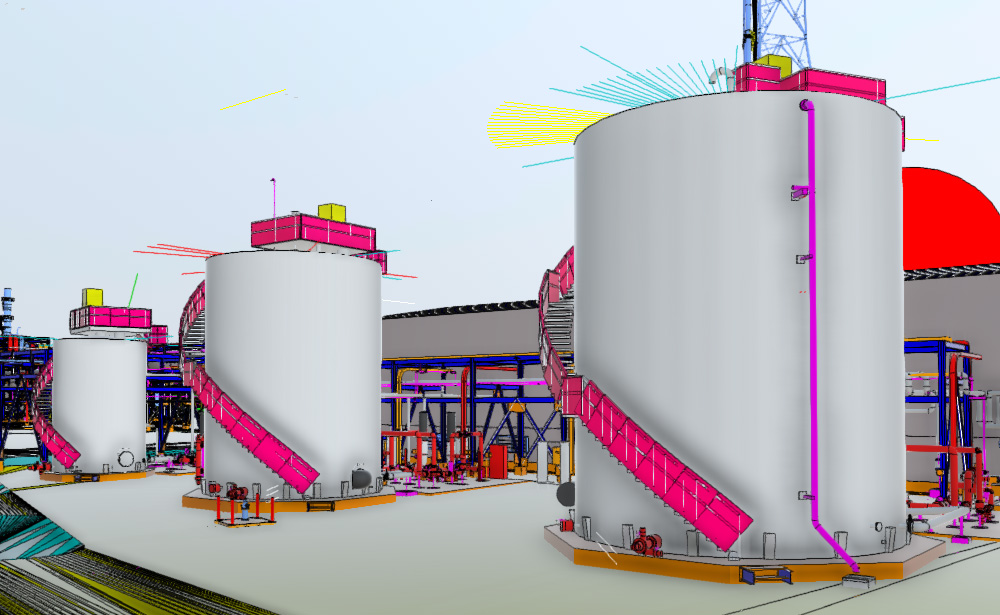
  • Oil & Gas: Plant modeling and maintenance planning
  • Heritage preservation: Digital archiving of monuments
  • Infrastructure: Bridges, tunnels, and roads documentation

The Future of 3D Laser Scanning Data Processing

The future of this field is being shaped by automation and AI. Emerging trends include:

  • AI-driven point cloud classification
  • Automated BIM model generation
  • Cloud-based processing workflows
  • Real-time scan-to-model conversion
  • Integration with digital twins

These innovations are reducing manual effort and increasing speed and accuracy.

Conclusion

3D laser scanning data processing is the bridge between raw spatial data and meaningful digital models. It plays a critical role in modern design, construction, and asset management workflows.

Revit Modeling Services: A Complete Guide for AEC Professionals

In today’s Architecture, Engineering, and Construction (AEC) industry, digital workflows have become essential for delivering accurate, efficient, and cost-effective projects. Among these workflows, Revit Modeling Services play a central role in Building Information Modeling (BIM), enabling professionals to create intelligent 3D models that integrate geometry with real-world data.

This article explains what Revit modeling services are, how they work, their benefits, and why they are increasingly essential for modern construction and design projects.

What Are Revit Modeling Services?

Revit Modeling Services refer to the process of creating detailed, data-rich 3D building models using Autodesk Revit. These models are not just visual representations; they contain structured information about building elements such as walls, doors, windows, structural components, MEP systems, and more.

Service providers typically use Revit to convert:

  • 2D CAD drawings into 3D BIM models
  • Point cloud data (from laser scanning) into as-built models
  • Concept designs into detailed construction-ready models
  • Architectural sketches into coordinated BIM environments

The output is a parametric BIM model that can be used across the entire project lifecycle.

Key Types of Revit Modeling Services

1. Architectural Modeling

Focuses on building design elements such as walls, floors, roofs, doors, windows, and finishes. It ensures visual accuracy and design coordination.

2. Structural Modeling

Includes beams, columns, foundations, and reinforcement detailing. It helps engineers analyze load distribution and structural performance.

3. MEP Modeling

Covers Mechanical, Electrical, and Plumbing systems. This ensures clash-free coordination between building services.

4. Scan to BIM Services

Transforms laser-scanned point cloud data into accurate Revit models, commonly used for renovation and retrofit projects.

5. As-Built Modeling

Represents the exact existing condition of a building, often used for facility management and renovation planning.

How Revit Modeling Services Work

The typical workflow includes:

  1. Data Collection
    Inputs include CAD files, sketches, PDFs, or point cloud scans.
  2. Project Setup in Revit
    Templates, levels, grids, and standards are established.
  3. Model Creation
    Architectural, structural, and MEP elements are modeled in 3D.
  4. Coordination & Clash Detection
    Different disciplines are coordinated to avoid design conflicts.
  5. Quality Assurance
    Models are checked for accuracy, standards compliance, and completeness.
  6. Final Delivery
    The BIM model is delivered in Revit format (.RVT) or exported formats like IFC.

Benefits of Revit Modeling Services

Improved Accuracy

Revit’s parametric environment ensures that all model elements are interconnected, reducing human error.

Enhanced Collaboration

Multiple disciplines can work on a shared BIM model, improving coordination between architects, engineers, and contractors.

Time and Cost Efficiency

Early detection of design issues reduces rework, saving both time and construction costs.

Better Visualization

Stakeholders can visualize the project in 3D, improving decision-making and communication.

Lifecycle Management

The model can be used beyond construction for facility management and maintenance.

Industries That Use Revit Modeling Services

  • Architecture firms
  • Construction companies
  • Engineering consultancies
  • Real estate developers
  • Facility management companies
  • Infrastructure and industrial projects

Why Outsource Revit Modeling Services?

Outsourcing BIM modeling has become a common strategy due to its practical advantages:

  • Access to skilled BIM professionals
  • Reduced operational costs
  • Faster project turnaround
  • Scalability for large or multiple projects
  • Focus on core design and engineering tasks

Outsourcing also ensures compliance with international BIM standards without needing to maintain a large in-house team.

Future of Revit Modeling in BIM

The future of Revit modeling is closely tied to advancements in:

  • Cloud-based BIM collaboration
  • AI-assisted modeling and automation
  • Digital twins for smart building management
  • Integration with GIS and real-time data systems

As construction becomes more data-driven, Revit modeling will continue to evolve from a design tool into a full lifecycle management platform.

Conclusion

Revit Modeling Services have become a cornerstone of modern BIM workflows, offering precision, efficiency, and collaboration across all stages of construction projects. Whether for new builds, renovations, or infrastructure development, Revit-based BIM modeling ensures better design coordination and smarter project execution.

BIM Coordination & Clash Detection: A Complete Guide for Modern Construction Projects

Building Information Modeling (BIM) has fundamentally changed how architectural, engineering, and construction (AEC) projects are designed and delivered. Among its most critical applications are BIM Coordination and Clash Detection, which directly reduce construction errors, cost overruns, and rework on site.

This article breaks down what BIM coordination and clash detection are, how they work, and why they are essential in today’s complex building projects.

What is BIM Coordination?

BIM Coordination is the process of integrating and managing multiple discipline models—architectural, structural, and MEP (mechanical, electrical, plumbing)—into a single coordinated digital environment.

Each discipline typically develops its own model using tools such as:

  • Autodesk Revit for architectural and engineering modeling
  • Autodesk Construction Cloud for collaboration and model sharing

The goal of BIM coordination is to ensure that all models align spatially, functionally, and technically before construction begins.

In simple terms: it is the “alignment phase” where all building systems are made to work together virtually.

What is Clash Detection?

Clash Detection is the process of identifying conflicts between different building systems within a BIM model.

These conflicts can include:

  • Structural beams intersecting with HVAC ducts
  • Electrical conduits passing through plumbing lines
  • Equipment not fitting within allocated space
  • Maintenance access conflicts (clearance issues)

Clashes are typically categorized into:

1. Hard Clashes

Physical intersections between elements (e.g., pipe running through a beam).

2. Soft Clashes

Violations of spatial or clearance requirements (e.g., insufficient service access space).

3. Workflow / 4D Clashes

Scheduling-related conflicts where construction sequences interfere with each other.

How Clash Detection Works in BIM Workflow

A typical BIM coordination workflow includes the following stages:

1. Model Creation

Each discipline develops its own detailed BIM model in authoring software like Autodesk Revit.

2. Model Aggregation

Models are combined into a federated model using coordination tools such as:

  • Autodesk Navisworks
  • Solibri

3. Clash Detection Analysis

The software automatically scans for geometric and rule-based conflicts.

4. Issue Reporting

Detected clashes are documented and categorized for resolution.

5. Coordination Meetings

BIM coordinators and discipline leads review clashes and agree on design adjustments.

6. Model Update

Each discipline revises its model and the cycle repeats until the model is clash-free (or within acceptable tolerance).

Key Benefits of BIM Coordination & Clash Detection

1. Reduced Construction Rework

Detecting issues before construction significantly reduces expensive on-site corrections.

2. Cost Efficiency

Fewer change orders and better material planning reduce overall project cost.

3. Improved Project Timeline

Early conflict resolution prevents delays during construction.

4. Enhanced Collaboration

All stakeholders work from a single source of truth, improving communication across disciplines.

5. Higher Design Accuracy

Integrated models lead to more reliable and buildable designs.

Common Challenges in BIM Coordination

Despite its benefits, BIM coordination can face challenges such as:

  • Inconsistent modeling standards across teams
  • Large and complex model files causing performance issues
  • Poorly defined Level of Development (LOD) requirements
  • Lack of coordination responsibility ownership
  • Late-stage design changes

These issues can be mitigated with strong BIM execution planning and clear coordination protocols.

Best Practices for Effective Clash Detection

To maximize the value of BIM coordination, consider the following best practices:

Maintain Clear BIM Standards

Establish modeling guidelines, naming conventions, and LOD requirements early in the project.

Coordinate Regularly

Run clash detection cycles at defined milestones—not just at the end of design.

Prioritize Clashes

Not all clashes are equal. Focus on critical system conflicts first (structure, MEP main routes).

Use a Centralized Platform

Cloud-based systems like Autodesk Construction Cloud help ensure all stakeholders work on updated models.

Assign Responsibility

Clearly define who is responsible for resolving each type of clash.

Document Everything

Maintain a structured issue tracking system for accountability and transparency.

The Future of BIM Coordination

BIM coordination is evolving beyond simple clash detection. Emerging trends include:

  • AI-assisted clash resolution suggestions
  • Real-time cloud coordination environments
  • Integration with 4D (time) and 5D (cost) modeling
  • Automated rule-based compliance checking
  • Digital twins for facility lifecycle management

Platforms like Autodesk Navisworks and Solibri are continuously expanding their capabilities to support these advancements.

Conclusion

BIM coordination and clash detection are no longer optional—they are essential components of modern construction project delivery. By identifying design conflicts early and ensuring all disciplines are properly aligned, teams can significantly improve efficiency, reduce risk, and deliver higher-quality buildings.

As-Built Drawing Services: Accurate Documentation for Real-World Construction

In construction and architecture, what is designed on paper rarely matches the final built condition exactly. Field adjustments, design changes, unforeseen site conditions, and contractor modifications all contribute to deviations from original plans. This is where As-Built Drawing Services become essential.

As-built drawings provide a precise record of what was actually constructed, forming a critical foundation for facility management, renovation, legal documentation, and future design work.

What Are As-Built Drawings?

As-built drawings are updated versions of original construction drawings that reflect all changes made during the construction process. They document the exact dimensions, materials, layouts, and systems as they exist in the completed structure.

These drawings typically include updates to:

  • Architectural layouts (walls, doors, windows)
  • Structural modifications (beams, columns, slabs)
  • Mechanical, Electrical, and Plumbing (MEP) systems
  • Site conditions and utilities
  • Equipment placement and installations

They are often created after construction completion, but in many modern workflows, they are updated progressively during construction using digital tools.

What Are As-Built Drawing Services?

As-built drawing services refer to the professional process of collecting, verifying, and converting field data into accurate construction documentation.

These services are usually provided by CAD technicians, BIM specialists, or surveying professionals who use tools such as:

  • Laser scanning (LiDAR)
  • Total stations
  • Drones (for large sites)
  • Manual site measurements
  • Point cloud data processing
  • BIM modeling software (Revit, AutoCAD, ArchiCAD)

The final output is a set of updated 2D drawings or 3D BIM models that reflect real-world conditions.

Why As-Built Drawings Are Important

1. Accurate Facility Management

Building owners rely on as-built documentation to understand the exact location of systems like electrical wiring, HVAC ducts, and plumbing lines. This reduces maintenance time and avoids costly errors.

2. Renovation and Retrofit Projects

Before modifying a building, architects and engineers need accurate existing-condition drawings. As-built documentation ensures safe and efficient redesign work.

3. Legal and Compliance Requirements

Many jurisdictions require updated drawings for regulatory approval, occupancy certificates, and dispute resolution.

4. Risk Reduction

Accurate documentation helps prevent construction conflicts, utility damage, and design errors during future work.

5. Asset Lifecycle Management

For large infrastructure and commercial buildings, as-built drawings support long-term asset tracking and management.

Process of As-Built Drawing Services

The workflow typically follows these stages:

1. Site Survey and Data Collection

Professionals visit the site and gather real-world data using measurement tools or scanning technologies.

2. Point Cloud Generation (if scanning is used)

Laser scanning produces millions of data points representing the building geometry, known as a point cloud.

3. Data Processing and Verification

The collected data is cleaned, aligned, and checked for accuracy against design intent or previous drawings.

4. CAD/BIM Modeling

Technicians convert field data into structured CAD drawings or BIM models using software like AutoCAD or Revit.

5. Quality Control

Final drawings are reviewed to ensure dimensional accuracy and compliance with project requirements.

6. Delivery of Final Documentation

Clients receive updated 2D drawings, 3D models, or both, depending on project needs.

As-Built Drawings vs. Design Drawings

Feature Design Drawings As-Built Drawings
Purpose Proposed design Actual construction
Accuracy Theoretical Field-verified
Updates Before construction During/after construction
Usage Planning & approval Maintenance & renovation

Understanding this difference is critical for avoiding costly misinterpretations during future work.

Industries That Rely on As-Built Drawing Services

  • Architecture and construction
  • Civil engineering infrastructure projects
  • Industrial plants and factories
  • Oil and gas facilities
  • Commercial real estate
  • Healthcare and educational buildings

Each of these sectors depends on precise documentation to ensure safety, compliance, and operational efficiency.

Benefits of Professional As-Built Drawing Services

Hiring specialized service providers offers several advantages:

  • Higher accuracy through advanced scanning and modeling tools
  • Faster turnaround compared to manual drafting
  • Reduced risk of construction disputes
  • Integration with BIM workflows for digital twins
  • Scalable solutions for small buildings to large infrastructure projects

The Future: As-Built Documentation and BIM Integration

Modern construction is rapidly moving toward BIM-based as-built modeling. Instead of static drawings, organizations are adopting intelligent 3D models that store metadata about every building component.

This evolution supports:

  • Smart facility management
  • Predictive maintenance
  • Digital twin development
  • Cloud-based collaboration

As technology advances, as-built drawing services are becoming a core component of digital construction ecosystems.

Conclusion

As-built drawing services are no longer optional—they are a critical part of modern construction and infrastructure management. They bridge the gap between design intent and real-world execution, ensuring that buildings can be safely maintained, upgraded, and understood throughout their lifecycle.

Revit Family Creation: A Complete Guide for BIM Efficiency and Standardization

In Building Information Modeling (BIM), Revit Family Creation is one of the most critical components for achieving consistent, data-rich, and scalable design workflows. Families in Autodesk Revit are not just geometric objects—they are intelligent parametric components that define how elements behave, display, and store information throughout a project lifecycle.

Whether you are working on architectural, structural, or MEP models, understanding how to build and manage Revit families directly impacts model accuracy, coordination efficiency, and downstream deliverables.

What is a Revit Family?

A Revit family is a collection of 2D and 3D elements with shared parameters and behaviors. These elements are used to represent real-world building components such as doors, windows, beams, ducts, furniture, and fixtures.

Revit families are typically categorized into three types:

  • System Families – Built into Revit (e.g., walls, floors, roofs)
  • Loadable Families – Custom components created externally and loaded into projects (e.g., doors, furniture)
  • In-Place Families – Unique, project-specific elements created directly within a model

Among these, loadable families are the primary focus of Revit Family Creation workflows.

Why Revit Family Creation Matters

Proper family creation is not just a modeling task—it is a data engineering process within BIM. Poorly built families can cause:

  • Slow model performance
  • Coordination issues during clash detection
  • Incorrect scheduling and quantity takeoffs
  • Inconsistent documentation output

On the other hand, well-structured families improve:

  • Model efficiency and lightweight performance
  • Automated scheduling accuracy
  • Design flexibility through parametric control
  • Cross-discipline coordination

Core Principles of High-Quality Revit Families

1. Parametric Control

Parametric modeling is the backbone of Revit families. Parameters allow users to modify dimensions, materials, visibility, and behavior without rebuilding geometry.

Key parameter types include:

  • Type Parameters – Control all instances of a family type
  • Instance Parameters – Control individual placed elements
  • Shared Parameters – Used for tagging and scheduling across projects

A well-structured family minimizes hard-coded geometry and maximizes parameter-driven flexibility.

2. Proper Reference Planes and Constraints

Reference planes define the framework of a family. All geometry should align and lock to these planes to ensure stability when dimensions change.

Best practices include:

  • Establish origin-based symmetry
  • Lock geometry to reference planes
  • Avoid over-constraining elements

Poor constraint management is one of the most common causes of unstable families.

3. Lightweight Geometry

Families should be optimized for performance:

  • Avoid excessive detail at low Levels of Detail (LOD)
  • Use symbolic lines instead of heavy geometry where possible
  • Minimize imported CAD or mesh data

Over-modeled families can significantly slow down large BIM models.

4. Nested Families for Complex Components

For complex assemblies (e.g., HVAC units, curtain walls, furniture systems), nested families help maintain modularity.

Advantages include:

  • Easier maintenance and updates
  • Reusable components
  • Cleaner parameter management

However, nesting should be controlled to avoid parameter duplication and reporting issues.

The Workflow of Revit Family Creation

A structured workflow ensures consistency and reduces rework:

Step 1: Requirement Analysis

Understand:

  • Intended use (architectural, structural, MEP)
  • Required parameters
  • LOD requirements (LOD 100–500)

Step 2: Template Selection

Choose the correct family template:

  • Metric/Imperial Generic Model
  • Door/Window template
  • Specialty equipment template

Step 3: Reference Framework Setup

Define:

  • Origin point
  • Reference planes
  • Constraints and alignment logic

Step 4: Geometry Modeling

Build geometry using:

  • Extrusions
  • Sweeps
  • Blends
  • Revolves

Ensure all geometry is parametric and constraint-driven.

Step 5: Parameter Assignment

Assign:

  • Dimensions (width, height, depth)
  • Material parameters
  • Visibility controls
  • Reporting parameters

Step 6: Testing and Validation

Load into a project and test:

  • Flexibility across sizes
  • Schedule behavior
  • Clash compatibility

Levels of Detail (LOD) in Families

LOD defines how much detail a family contains at different project stages:

  • LOD 100–200: Conceptual representation
  • LOD 300: Accurate design-level geometry
  • LOD 350–400: Coordination-ready model
  • LOD 500: As-built accuracy

Aligning families with appropriate LOD ensures efficiency and avoids unnecessary model weight.

Common Mistakes in Revit Family Creation

Even experienced BIM modelers encounter recurring issues:

  • Overcomplicated geometry for simple objects
  • Missing or inconsistent parameters
  • Incorrect category assignment
  • Ignoring naming conventions
  • Lack of shared parameter integration

These issues often lead to downstream coordination failures and data loss in schedules.

Industry Use Cases

Revit family creation is essential across multiple BIM applications:

  • Architecture: Doors, windows, furniture systems
  • Structure: Steel connections, reinforcement components
  • MEP: Duct fittings, pipe accessories, equipment modeling
  • Facility Management: Asset tracking and lifecycle management

In large-scale BIM coordination workflows, standardized families are essential for interoperability and data consistency.

Final Thoughts

Revit Family Creation is not just a technical skill—it is a foundational BIM discipline that directly impacts project quality, coordination efficiency, and data integrity. High-performing BIM teams invest heavily in standardized family libraries to ensure scalability across projects.

When properly executed within Autodesk Revit, families become more than components—they become intelligent building data systems that support design, construction, and operations.